

In Viewport Modeling With Less UI

WheelCtrl is part of Onikanabo’s KeyHydra package.
It bring an interactive modeling workflow inside 3ds max using the Mouse Scrolling Wheel as Imput method in order to tweak settings and values of all almost all modeling operations.
Wheel control allow the user to control any modeling op with mouse wheel :
From Amount Of Segments On Primitives, To Connect Amount, Pinches, Extrudes Settings.
Even the one that are not yet inside max [technical people will be hable to tweek the xml file].
Ohhh, loving this update! The more tools that let us click less, the better.
Justo - Polycount Community Member
Easier
WheelCtrl Have been designed to work in junction with KeyHydra's shortcuts.
Faster
WheelCtrl Will allow you to interact faster in viewport without having to type value on keyboard.
Stronger
WheelCtrl will speed your workflow.
Being fast is being efficient, when it come to modeling.
In The Flow
WheelCtrl will allow you to stay in the Flow.It Ergonomic.
Everything Users need is in a Tiny Box.
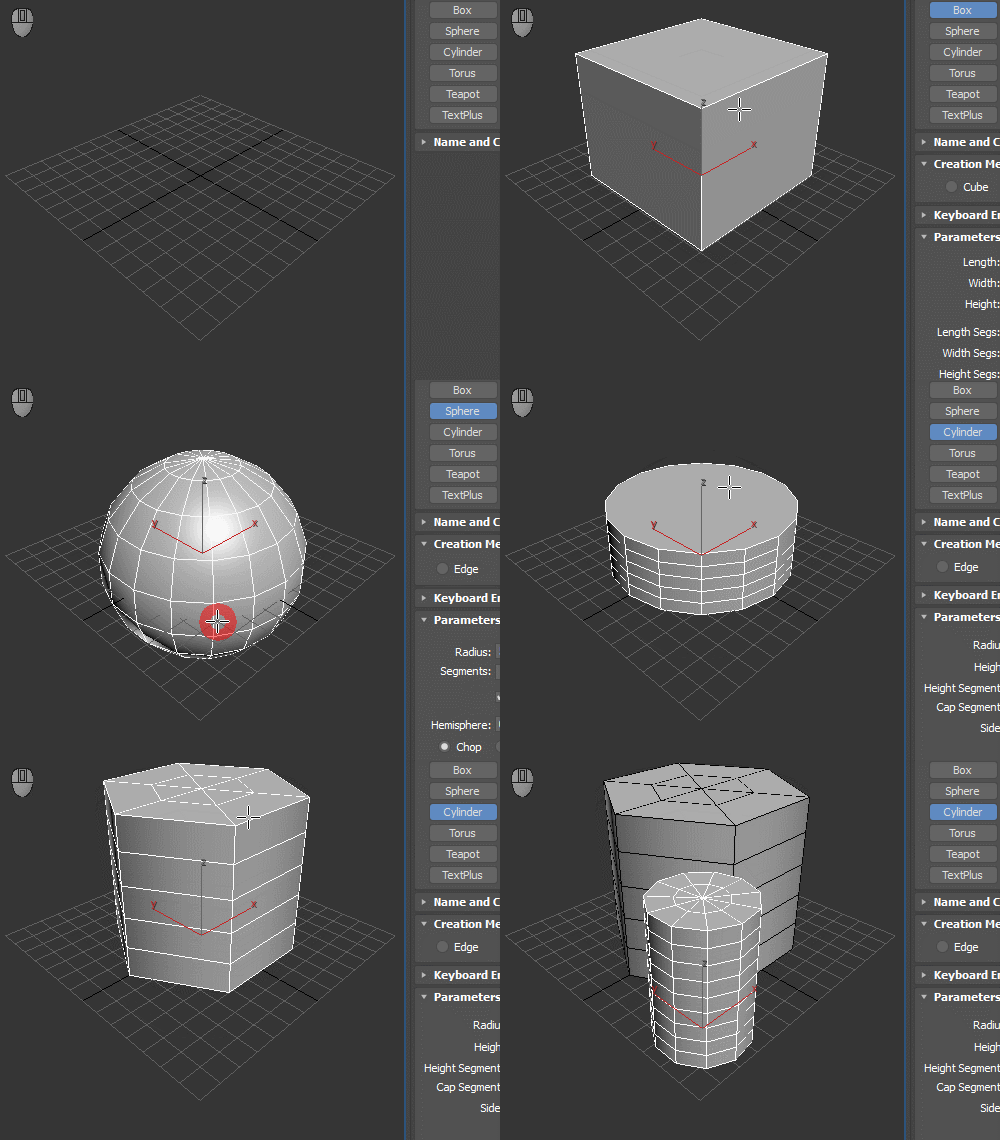
Primitves Creation
When creating any primitive (built-in, scripted, 3rd-party plugin, anything you configure in the UI/xml config file), it’s parameters can be changed during creation by scrolling the wheel while holding shift/alt/ctrl. The obvious choice is changing the segment count (the cutter fillet segments are by default also bound to a wheel shortcut), but you can also change any other numerical parameter, sizes etc.

World Units & Screen Units
You can either choose a fixed amount to change by everytime you turn the wheel or a screen pixel amount, that will be translated to world units based on current zoom level. Show here on a comparison of inset amount in world units vs screen units. In edit poly/editable poly, it works both when the caddies/settings dialog is open, and immediatelly after any supported operation.
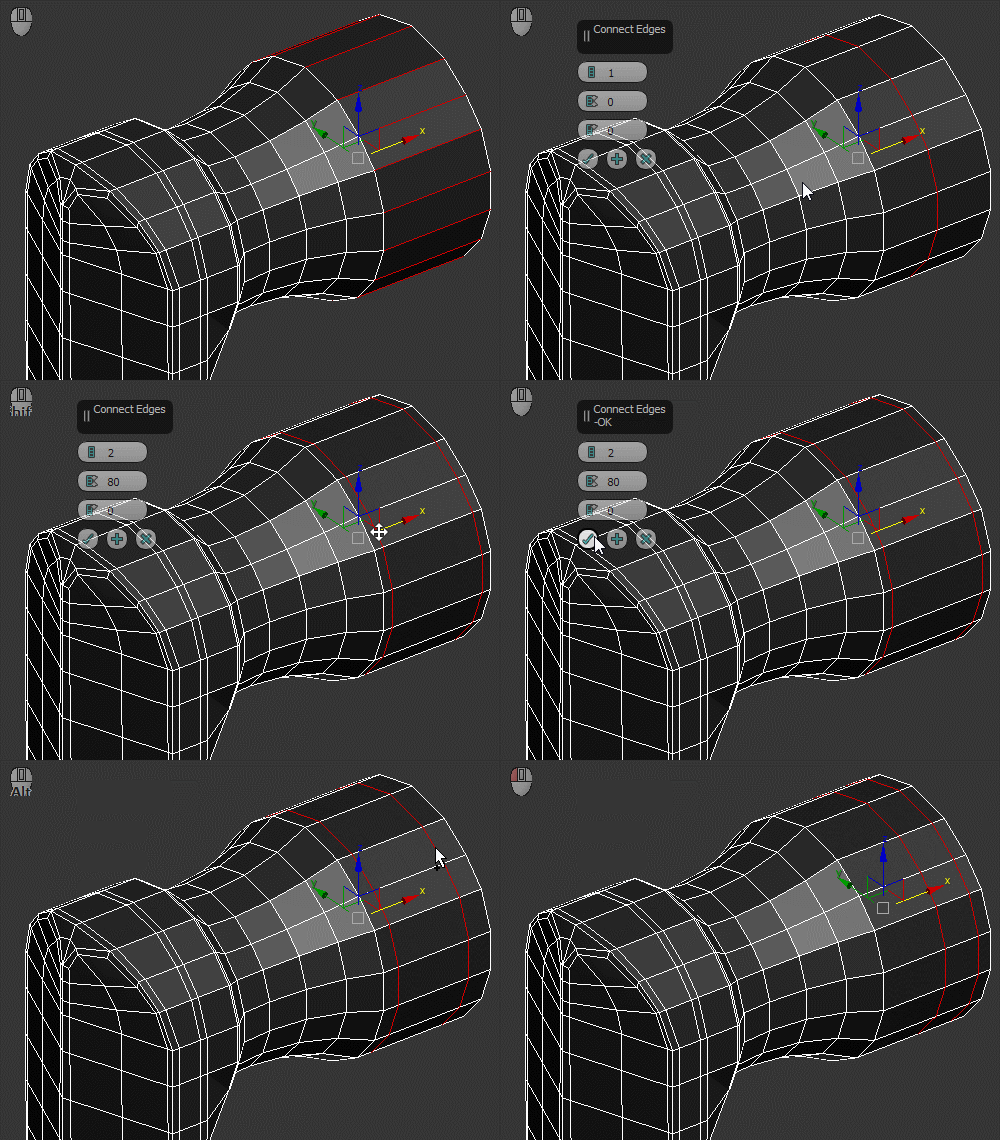
Still Active After Validation : Exemple with Connect
So for example if you have Connect bound to a shortcut, you can fire it and tweak it by ctrl/alt/shift scrolling the mouse wheel.
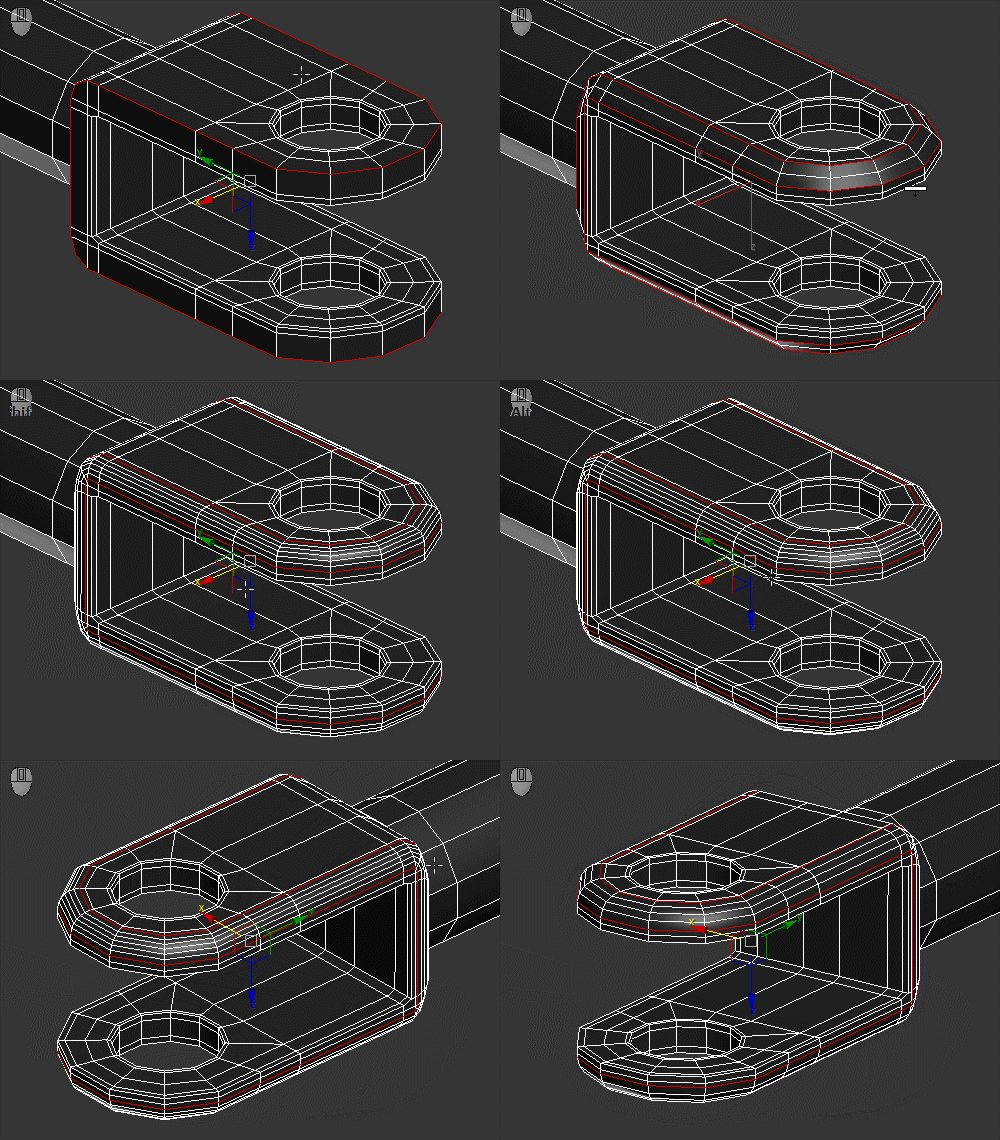
Interactives Tools : Exemple with Chamfer
Same if you use the interactive chamfer from the UI and want to change segment count or tweak the tension more precisely (or if you use Repeat last and want to change the outcome without undoing and pressing the settings button).

Control Multi-Parameters At Once
You can bind more parameters to the same key, so you can for example change the length and width segments at the same time,